This website uses Cookies. Click Accept to agree to our website's cookie use as described in our Privacy Policy. Click Preferences to customize your cookie settings.

- The Google for Education Community Platform
- Primary and Secondary Education Communities
- Global Google Educator Group
- Gemini Space
- 🚀 Create Cutting-Edge Educational Videos with Goo...
Options
- Subscribe to RSS Feed
- Mark Topic as New
- Mark Topic as Read
- Float this Topic for Current User
- Bookmark
- Subscribe
- Mute
- Printer Friendly Page
🚀 Create Cutting-Edge Educational Videos with Google Vids: A Step-by-Step Guide That Will Blow Your

Options
- Mark as New
- Bookmark
- Subscribe
- Mute
- Subscribe to RSS Feed
- Permalink
- Report Inappropriate Content
06-05-2026 09:06 PM
🚀 Create Cutting-Edge Educational Videos with Google Vids: A Step-by-Step Guide That Will Blow Your
Hello teachers and educators! Today, I have an amazing new tool from Google Workspace for Education to share with you! Did you know that you can now create awesome, engaging educational videos yourself without needing complex editing software or spending hours on production? Because Google Vids, powered by AI, has made creating video lessons exponentially easier!
Let's dive into the steps on how to conjure up these video lessons yourself. Get ready, let's go!
📝 Steps to Create Educational Videos with Google Vids
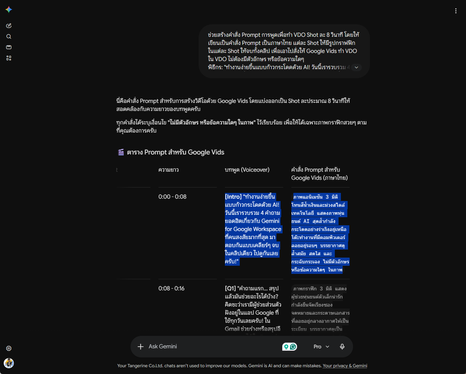
1. Outline Your Lesson Perfectly with AI! The first secret to creating great media is good planning. You need to know that the AI in Vids can generate clips up to 8 seconds long per generation. Therefore, we need to have an AI (like Gemini) help write the video Prompts, breaking them down into sequential segments. I recommend alternating between the teacher explaining and lesson graphics until the end of the content to stitch together a long, engaging video.
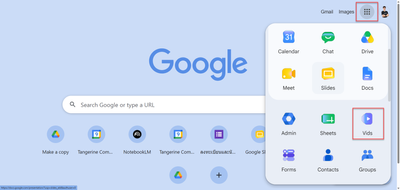
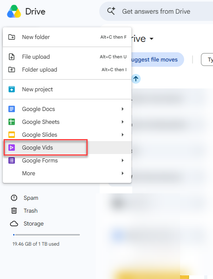
2. Launch Google Vids in Your School's Workspace Once you have the Prompts for the entire lesson, log into your Google Workspace account. You can easily click through the 9-dot menu (Google Apps) in the top right corner or create a new file directly from Google Drive. It's super convenient!
3. Conjure Up Educational Animations with the "Veo" Button When you're in Vids, notice the toolbar on the right side. Click on the Veo tool (Google's AI video generation model) and follow these steps:
Upload a reference image of the teacher or the educational media you want the AI to use as a base.
Copy each segment of your prepared lesson Prompt and paste it into the text box.
Click Generate and drag the resulting 8-second clips onto the Timeline, arranging them sequentially until your prepared content is complete.
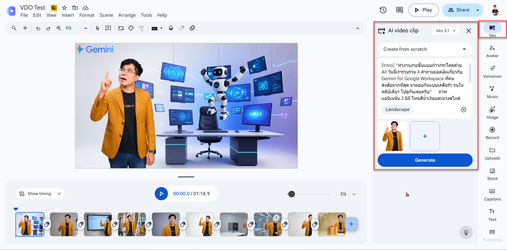
4. Final Touches & Export for Your Students! Once your clips are fully assembled, you can still use the right-hand toolbar to add flair, insert voiceovers, add background music, or highlight key terms with text. When you're done, simply download it as an MP4 file, ready to be uploaded to Google Classroom, YouTube, or sent directly to your students for review!
💡 Quick Summary for Teachers: With just a good lesson script + an image + a Prompt, you can let Veo on Google Vids magically create professional-grade educational videos with ease. It saves a ton of lesson prep time! If you haven't tried it yet, you definitely need to. I guarantee your students will be amazed!
wirut khajonchai
Topics:
4 REPLIES 4

Options
- Mark as New
- Bookmark
- Subscribe
- Mute
- Subscribe to RSS Feed
- Permalink
- Report Inappropriate Content
06-09-2026 11:02 PM
Waah very useful!!! I don't want to jinx it. But if this services was present during covid19, this will be fabulous livesaver.
Options
- Mark as New
- Bookmark
- Subscribe
- Mute
- Subscribe to RSS Feed
- Permalink
- Report Inappropriate Content
06-09-2026 11:18 PM
Thank you so much for your kind words! 😊 Your support means a lot to me and gives me so much encouragement to keep sharing helpful content. Truly grateful to have you here in the community!
wirut khajonchai


Options
- Mark as New
- Bookmark
- Subscribe
- Mute
- Subscribe to RSS Feed
- Permalink
- Report Inappropriate Content
06-10-2026 04:51 AM
This is a great breakdown, Wirut!
Thank you for sharing such a clear overview of your process with the community. Dcumenting these workflows is incredibly helpful for educators worldwide who are looking to innovate their daily practice. Amazing work!
Best,
Sabina
Options
- Mark as New
- Bookmark
- Subscribe
- Mute
- Subscribe to RSS Feed
- Permalink
- Report Inappropriate Content
06-10-2026 07:11 AM
Thank you so much, Sabina! 😊 Your feedback means a lot to me, especially coming from you. I’m really glad to hear that this workflow can be helpful for educators. I hope it inspires more teachers to try out these new tools!
wirut khajonchai

Subscribe
Related Content
- Google AI Educator Series (GES) Badgeathon: Day of AI Learning in Events
- Michigan Association of Administrators of Special Education (MAASE) Administrator Webinar Series in Stay Informed
- Bridging Borders: GEG Italia & GEG Diadema Connect for the Future of Education 🌍🇮🇹🇧🇷 in Google Educator Collaboration Space
- Google AI Educator Series | October Content Drop in Events
- Recap & Recording | Google AI Educator Series | September Content Drop in News & Announcements
