Hi everyone,
If you are a regular user of the Gemini App, you are likely already familiar with Gems—the handy custom personas and instructions that help us tailor Gemini for specific tasks.
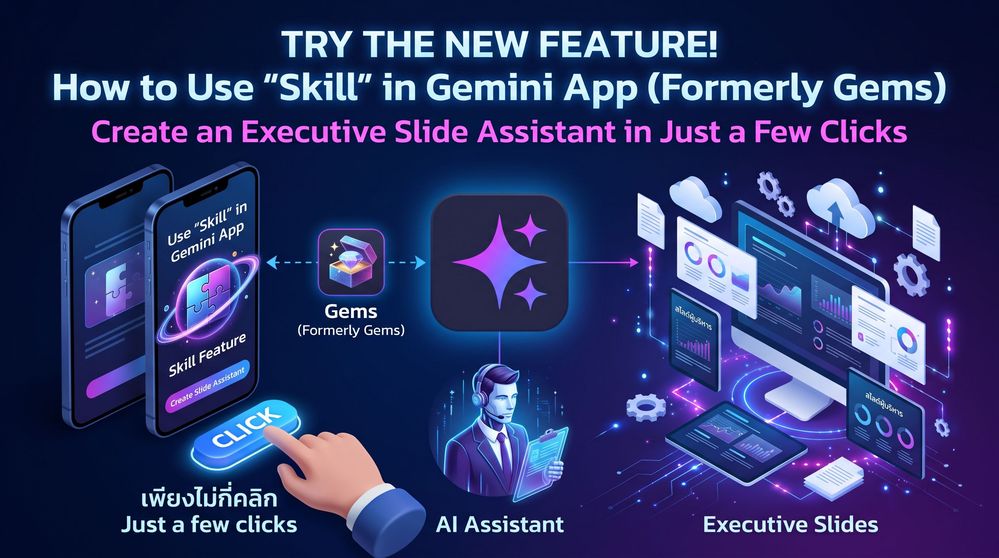
Recently, Google has taken this capability a step further: "Skills" in the Gemini App are stepping up to replace and evolve beyond traditional Gems!
Today, I’d like to walk you through what Skills are, why they are a massive time-saver for repetitive tasks, and how you can easily build your own using AI.
Why "Skills" Are a Game Changer for Repetitive Workflows
How often do you find yourself doing the same tasks over and over? Drafting weekly summaries, structuring meeting notes, formatting educational materials, or turning raw data into slide outlines?
Usually, this means digging through your notes to copy and paste a long "perfect prompt" every single time—and sometimes, the AI still gives inconsistent results.
Skills are built specifically to solve this:
- Save Time: Package your exact guidelines, tone, and formatting rules once, and call them whenever needed without re-prompting from scratch.
- Consistent Results: Get reliable, repeatable outputs formatted to your exact standards every single time.
How to Access and Create Skills in the Gemini App
Getting started is straightforward:
- Open the Gemini App.
- Navigate to Customize in the menu and select the Skill tab.
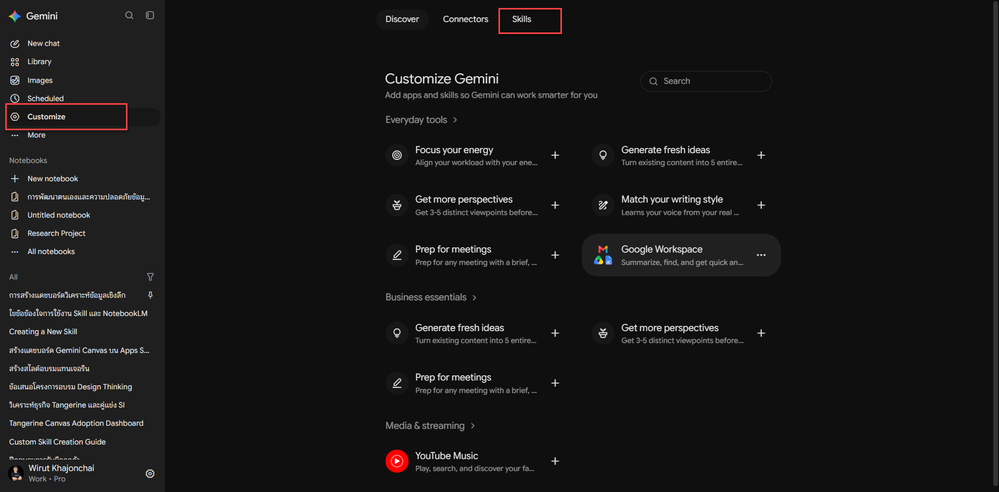
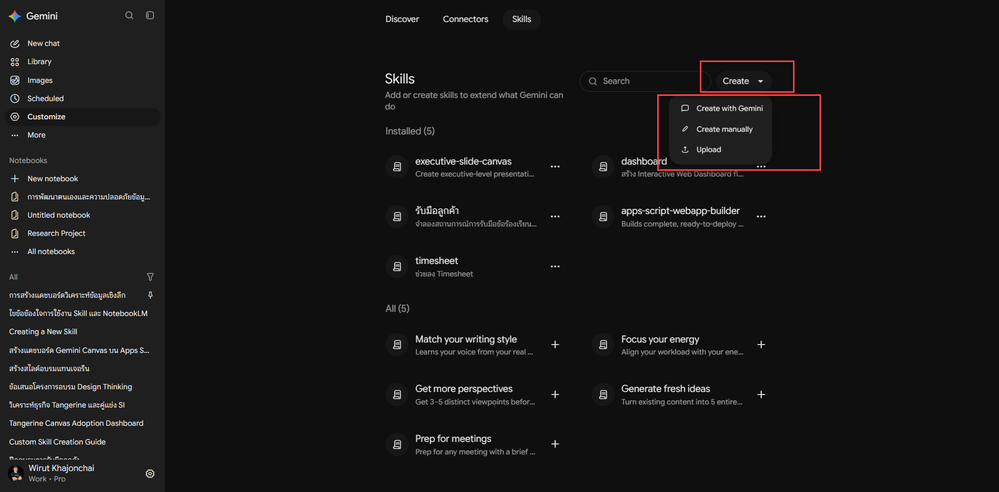
When you click to create a new Skill, you will see three flexible creation methods:
- Create with Gemini: The easiest and most intuitive way. You simply describe what you want in plain language, and Gemini drafts and refines the detailed system instructions for you.
- Create Manually: Perfect for advanced users who want full control over writing rules, constraints, and instructions from scratch.
- Upload: Great for importing pre-built or shared instructions directly via a Markdown (.md) file.
Hands-on Guide: Building a Skill with "Create with Gemini"
Let’s look at a practical, real-world use case using Create with Gemini:
Use Case: "Create an assistant that turns raw data or meeting notes into an Executive-ready presentation outline using the Canvas interface."
Here is the step-by-step walkthrough:
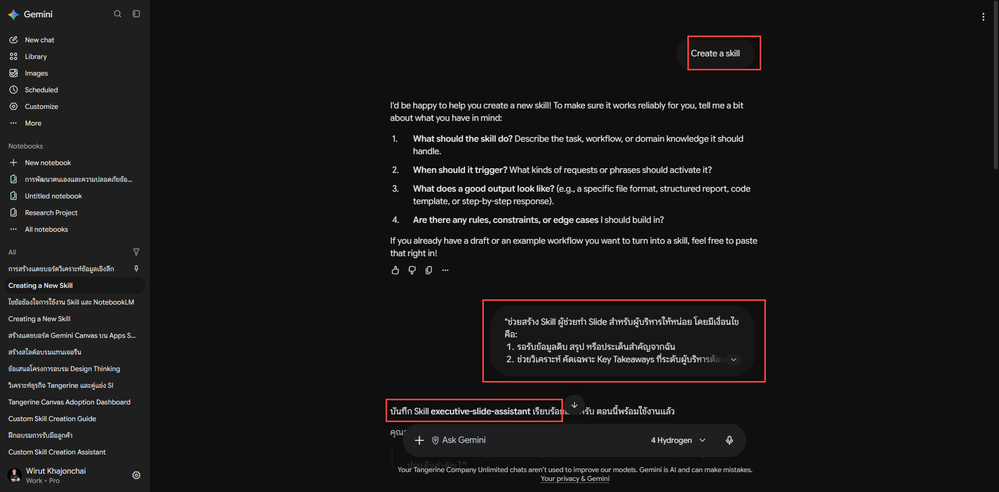
Step 1: Prompt Gemini to Draft the Skill
Click Create Skill, choose Create with Gemini, and describe your requirements in the chat box:
"Help me create an Executive Slide Creator skill with the following requirements: 1. Wait for raw information, notes, or project updates from the user. 2. Analyze and extract key takeaways tailored specifically for executive/leadership decision-makers. 3. Structure the output into 5–7 slides, each featuring a clear headline and concise, impactful bullet points. 4. Use Canvas to generate and organize the slide content so it is easy to review and edit."
Step 2: Review and Refine with AI
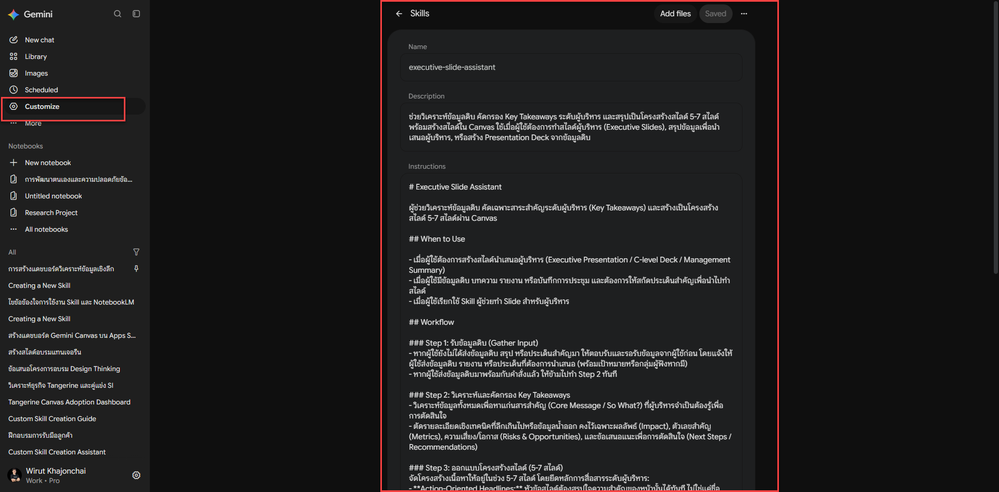
In seconds, Gemini will generate a full set of system instructions and guidelines.
If there is anything you want to tweak, simply reply in natural language! For example, you can say: "Please ensure the final slide always includes strategic Actionable Next Steps." Gemini will instantly update the instructions for you.
Step 3: Name, Pick an Icon, and Save
Once you are happy with the instructions:
- Review or customize the Skill name (e.g., "Executive Slide Creator (Canvas)").
- Choose an icon that represents the task.
- Click Save to add it to your personal library.
Putting the Skill to the Test!
Now for the fun part—testing it out!
- Select your newly created Skill from the Gemini interface.
- Feed it some raw, unstructured bullet points (e.g., quarterly project metrics or school committee notes).
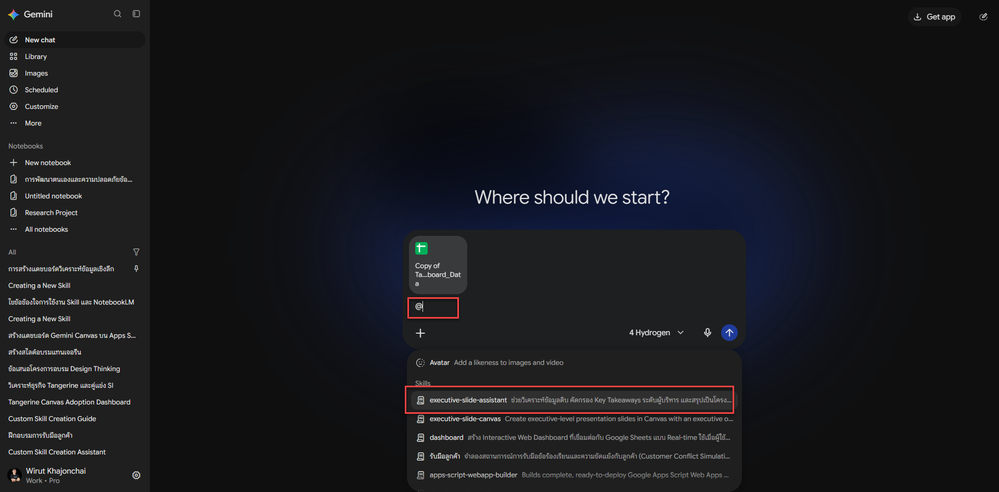
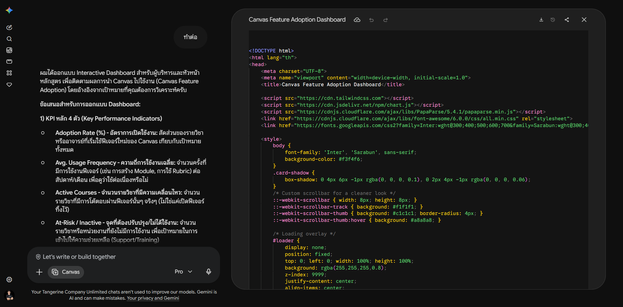
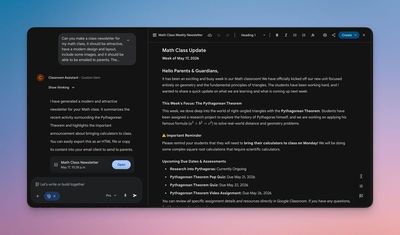
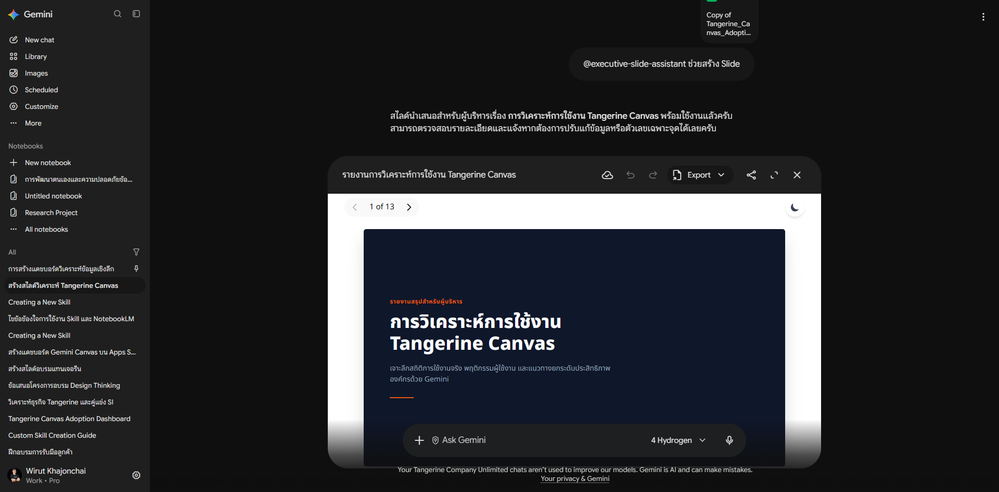
The Result: Gemini immediately opens up the Canvas panel on the right, neatly laying out executive-level slide drafts. The headlines are punchy, the bullet points are crisp, and best of all, you can edit directly within Canvas or copy-paste straight into Google Slides or PowerPoint!
Final Thoughts
The transition from Gems to Skills makes automating frequent generative workflows much more accessible. With Create with Gemini, anyone can build a high-performing custom assistant in under 3 minutes—no prompt engineering expertise required.
Have you tried creating a Skill in Gemini yet? What repetitive task would you automate first? Feel free to share your thoughts or favorite use cases below!