This website uses Cookies. Click Accept to agree to our website's cookie use as described in our Privacy Policy. Click Preferences to customize your cookie settings.

- The Google for Education Community Platform
- Primary and Secondary Education Communities
- ELP Admin Community
- Discussions
- Peer-Peer Topics
- How many extensions do you push?
Options
- Subscribe to RSS Feed
- Mark Topic as New
- Mark Topic as Read
- Float this Topic for Current User
- Bookmark
- Subscribe
- Mute
- Printer Friendly Page
How many extensions do you push?

Options
- Mark as New
- Bookmark
- Subscribe
- Mute
- Subscribe to RSS Feed
- Permalink
- Report Inappropriate Content
01-24-2024 11:14 AM
Do extensions use a tremendous amount of resources on chromebooks? Or does it depend on which extension?
We just picked up a bunch of new extension based products (Co-Writer/Read&Write for Google Chrome/OrbitNote, etc).
If I push these extensions to all, is there a limit before I start to see a performance hit on the devices?
I only have 3 other extensions being pushed right now.
Thanks!
Topics:
- Topics:
-
Discussion
2 REPLIES 2

Options
- Mark as New
- Bookmark
- Subscribe
- Mute
- Subscribe to RSS Feed
- Permalink
- Report Inappropriate Content
02-01-2024 07:42 PM
If you open the ChromeOS Task Manager (use the Search + Escape keyboard shortcut) you can see how much system resource is being used by each process on the machine, including extensions.
I tend not to run a lot of extensions, and I usually just enable the ones I need when I need them (using Extensity, highly recommended), not for performance, but because I don't like clutter. But even when I do run a lot of extensions I don't really notice a performance hit.
That said, It might depend a bit on the Chromebook you're using. All my Chromebooks have at least 8GB or RAM, so it's usually not an issue, but if you're pushing a bunch of resource hungry extensions to a machine with only 4GB, it's possible you might feel it a bit. Generally, it should not be an issue, but use the Task Manager to try and quantify the impact.
From what I can see, the extensions do take up RAM, but don't seem to impact on CPU load.
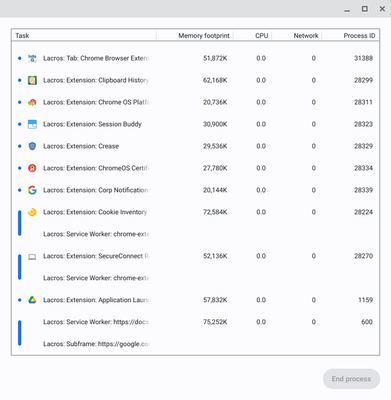
Ultimately, try it yourself as a user, using the target Chromebooks you plan to push them to, to see if you notice anything. If you can't really tell the difference, it's probably going to be fine.
Here's a couple of articles you might want to check out for further reading...
- https://www.aboutchromebooks.com/news/why-chrome-extensions-can-hurt-chromebook-performance/
- https://www.debugbear.com/blog/chrome-extension-performance-2021
- https://www.infoq.com/news/2021/09/performance-browser-extensions/
Google for Education
Sydney Australia
Reply

Options
- Mark as New
- Bookmark
- Subscribe
- Mute
- Subscribe to RSS Feed
- Permalink
- Report Inappropriate Content
02-05-2024 09:19 AM - edited 02-05-2024 12:02 PM
I think we push 1 because of a reason for students. However we try not to push any since at times they may have an issue, which then becomes a bigger issue for all. This way staff or students can install what is recommended under our chrome web store. It also allows them to be familar with troubleshooting when an issue occurs. they learn how to install and how to turn off/remove if required. Hope this makes sense.

Subscribe
Related Content
- DLP - or equivalent alerting/blocking in Peer-Peer Topics
- Chromebook changes preventing College google account login? in Peer-Peer Topics
- Managing old iphones in the Google Admin Console in Peer-Peer Topics
- Another Ver 139 issue in Peer-Peer Topics
- Chromebook keyboard disabled for certain users, but not all in Peer-Peer Topics
